The most popular Grok feature is, apparently, exactly what you think

NSFW uses account for "well over half" of traffic, a new report says.

xAI has long promoted Grok as a racier kind of chatbot with fewer of the guardrails of other AI companies. We've seen that play out in some disastrous ways over the last year, but we're now gaining some insight into why the company has leaned so hard into that strategy despite some veritable PR disasters.

It turns out that NSFW activities account for "well over half" of Grok's traffic, according to a new report in The Information that cites two former employees of the SpaceX-owned company. That includes using Grok to generate actual porn, as well as "adult role-play chats" and "huge volumes of requests for erotica."

Grok's users have even apparently discovered that it's cheaper to channel such requests through the company's models intended for writing code because those are cheaper to use. The report says that an internal analysis found that a "significant proportion of requests" to its coding model were for "porn or nude images." All that would suggest that SpaceX can attribute a decent amount of xAI revenue to porn and adult content. Though the role of NSFW material in the company's bottom line was somehow omitted from the company's IPO paperwork, SpaceX told potential investors that Grok's more "irreverent" features were a potential risk. It said it had aside $530 million to deal with potential legal costs.

The report also lays out some of the ways this has complicated things inside of the AI company. For one, xAI engineers had to figure out how to enable Grok to have sexy chats with users while blocking any prompts that might veer into child sexual abuse material. (There were, apparently, no "quick fixes" for the dilemma.)

Some employees were also less than thrilled with being assigned to work on "Ani," Grok's NSFW anime-inspired avatar companion. Others were reportedly "embarrassed and disturbed" by the ensuing scandal after Grok created a bunch of sexualized images of real people, including children. X later limited the ability to create racy edits out of images of real people using Grok directly on the platform, but paid subscribers to xAI can still generate such material, tests have found.

There are other potential challenges that could arise from Grok's focus on R-rated material. xAI has aggressively pursued government contracts and has inked deals with various agencies and the military, institutions that you might typically expect to have a very low tolerance for anything remotely NSFW. But while Grok's very public earlier dalliances into nonconsensual deepfakes and CSAM have prompted numerous lawsuits and investigations, it's not clear if those incidents have had any impact on its relationship with the federal government.

Next Up

If you're already watching YouTube daily, this subscription swap just makes sense

Is it time to double down on red?

Subscriptions are everywhere these days, and it feels like only a matter of time before someone figures out a way to paywall the air we breathe. On top of that, the prices just keep going up, with companies ratcheting monthly costs up as much as they can without causing mass attrition. Over time, it adds up, and subscription juggling is a fact of life for many consumers. You might pay for a month of Netflix to catch the last season of Stranger Things while putting your Disney+ on pause until The Mandalorian and Grogu hits the latter service.

But there's one subscription some people might be able to cut, at least those who spend a good amount of free time watching YouTube. Google's ubiquitous video platform was once free, but charges a subscription these days in the form of YouTube Premium for users who want to avoid ads and gain access to a slew of user experience improvements.

What you might not have realized is that a full-fat YouTube Premium subscription, which costs $16 at the time of this writing due to a recent price hike, also includes unlimited access to the platform's music streaming solution, YouTube Music. What that means for at least some heavy YouTube users is the ability to ditch a separate subscription to Spotify, Apple Music or another music streamer.

The trade-off isn't right for everyone, though. Whether YouTube Music is fit for your needs depends largely on how much you value the features it lacks compared to the competition, as well as how willing you might be to let the platform logic of YouTube dictate the music you listen to. Here's how YouTube Premium with YouTube Music compares to your existing music service, and how to figure out whether that single subscription is a better deal for you.

YouTube Music is great for avid watchers

The first thing you should know about YouTube Music is that it does not have a high-resolution library, even though that feature has become basic table stakes for the competition. Spotify, which dragged its feet on high-res for years, finally added its own lossless capabilities last year (it's not bit-perfect lossless, but if you're splitting that particular hair, YouTube Music isn't for you and you can safely stop reading this article). However, lossless audio is a relatively niche feature that you can't truly take advantage of without audiophile-grade playback equipment. If you listen to music on your AirPods via an iPhone, you're not getting lossless playback in the first place.

YouTube Music tops out at 256kbps in resolution, which absolutely will be noticeable to some ears compared to the 320kbps other services offer before tipping into lossless quality. The bottom line is that, if you already listen to music on YouTube and haven't had an issue with the sound quality, YouTube Music will suit you just fine in that regard.

Other differences between YouTube Music and Spotify or Apple Music become more subjective. Whereas those services allow you to build a more traditional music library, YouTube Music organizes things much in the same way as the video streaming side of the platform. You subscribe to artists rather than following them, and subscribing to an artist on YouTube also subscribes to them on YouTube Music. Playlists also carry over between both sides of the house. For those who want their taste in video content to affect their music recommendations, and vice versa, this can be a boon. But if you prefer some separation between church and state in that regard, it's a massive headache. Just because you watched a video about the Drake and Kendrick beef doesn't necessarily mean you want songs from all three of Drake's unlistenable new albums piped into your ears during a jog.

YouTube Music has niche features you can't get elsewhere

But the logic of YouTube gives YouTube Music one major edge: its user-uploaded library. In addition to most of the same major label offerings you'll find on pretty much any modern music streamer, YouTube Music is home to the largest user-uploaded collection of hard-to-find tracks in the world. That leaked single your favorite artist never officially released? YouTube Music has it. That set from Coachella you'd do anything to experience again? Don't bother looking on Spotify  — YouTube Music has you covered and it's no coincidence YouTube was the official streaming partner for Coachella in 2026. Speaking of the Drake and Kendrick beef, all of the songs from that kerfuffle went up on YouTube far in advance of their arrival on other streaming services as both emcees self-uploaded their disses to one-up each other in real time. The ability to add those kinds of tracks to your existing playlists is a structural advantage no competing service can match. Ditto for music videos because, you know, it's YouTube.

YouTube Music also includes a robust podcast library, including many audio-forward offerings that only exist on Google's platform in the form of user-created video essays and documentaries. Even among widely syndicated podcasts, a number of them can only be watched in video form on YouTube. That gives the platform an edge up over Spotify, although big green has put a heavy focus on bolstering its video podcast library in recent years, and an absolute win over Apple Music, as Apple users must get their podcasts from the separate Apple Podcasts app.

Because YouTube Music was born from the ashes of Google Play Music, it carries on its predecessor's functionality as a cloud player for your own, local files. Its two primary competitors also allow local uploads, but they'll lump your MP3 files in alongside streaming tracks in your library. YouTube music splits everything out, so you can isolate your uploads and browse just those songs by artist, album, and so on. If you're still in possession of a digital music library from the iTunes or Napster days (how do you do, fellow kids?), YouTube Music is a great way to continue enjoying them without wasting storage space on your smartphone.

Swapping Spotify for YouTube Premium isn't right for everyone

If all you got with a YouTube Premium subscription was the platform's music service, it wouldn't be worth replacing your Spotify or Apple Music subscription. But you're also getting a better experience on YouTube itself. Getting your money's worth from YouTube premium is easy if you're an avid user already. In addition to never seeing a pre-roll or mid-roll ad ever again, you can skip your favorite creator's sponsored segments using the Jump Ahead button that intelligently skips you over portions of a video that other users also tended to skip. Then there are perks like background play and offline downloads that let you take more control over where and how you enjoy YouTube videos.

It's that combined value which makes this comparison worthwhile. YouTube Premium is not cheap at its new price of $16 a month, especially compared to Spotify's $13 asking price, or Apple Music's $11 tag. But if you're already paying for it, and if YouTube Music offers an experience that meets your preferences, you can cut the standalone music subscription from your monthly budget without worry. Others may find it worth cutting the contract with their current music service and signing up for YouTube Premium to take advantage of its unique blend of content and features.

Next Up

Your Kindle could unlock thousands of free books: These are the best places to find them

If it feels like books are a luxury right now, here are some tips on finding some free ones.

We may receive a commission on purchases made from links.

If my personal experience is any indicator, excessive book buying should soon make its way into the DSM-5. As it's one of the few hobbies that your mother, pastor, and childhood school principal would all endorse, feeding your reading habit might be the only financially crippling addiction with a universal approval rating. Lucky for devotees of ereaders, Kindle offers over 60,000 free ebooks at any given time. Despite this abundance, however, most users have difficulty turning their Kindle into a personal Library of Alexandria without breaking the bank.

This is where I, your friendly neighborhood book curator, come into play. As a book snob whose financial habits are notoriously Scroogian, I've spent an embarrassing amount of time curating my Kindle Paperwhite's shelves. Think of me as a (nice) Ghost of Free Books Past, shepherding you through the haunted realms of missed deals and helping you dodge unnecessary Kindle Unlimited subscriptions. By harnessing Amazon's curated free book lists, subscriber programs, Stuff Your Kindle events, your local library and online repositories, bibliophiles can cram their ereaders with as many pages as their Kindle can hold.

Scavenging for free books

On any given day, tens of thousands of free books are available to download on the Kindle store. Unfortunately, Amazon declines to offer a complete list of free ebooks, instead transforming the practice of finding book deals into a dark art. Even Amazon's "Free Kindle Books" section shows only a fraction of those available on the site. A simple but flawed workaround is to search "Kindle free books" on Amazon's store and sort the results by price. Adding specifiers like genre can further narrow the list, but overall, it's an unwieldy system.

An easier means of finding free ebooks is to consult Amazon's Top 100 Best Sellers lists. Updated hourly, the section highlights the most downloaded free ebooks on Amazon's website at any given time. What most readers don't realize, however, is that they can filter these lists to fit their personal tastes using the sidebar, perusing bestsellers in disparate categories like occult horror and horticulture.

Amazon Prime subscribers can also take advantage of the conglomerate's special book programs. Amazon First Reads, for instance, gives subscribers early access to two Amazon editors' picks every month. There's also Prime Reading, which allows members to borrow up to 10 books at a time. Included with your Prime subscription, Prime Reading gives subscribers the ability to choose from over a thousand books, magazines and comics. Although offering a smaller selection than Kindle Unlimited, Prime Reading loans are not restricted to 90-day chunks, allowing subscribers to borrow up to ten books at a time without a firm return date. And for those like George Costanza who hate the sounds of their own voice in their heads, some Prime Reading books even include Audible narration.

Stuff Your Kindle days

Another avenue to maximizing your Kindle is to take advantage of Stuff Your Kindle Days. A promotional craze that began in the romance genre and has taken the ebook publishing world by storm, Stuff Your Kindle Days are community events in which authors make their ebooks free for a limited time. Often organized by groups like the Indie Author Collective and BookBub, the events typically highlight new writers and independent presses across your favorite genres. For most readers, Stuff Your Kindle Days are a risk-free literary tasting platter, where you can sample titles by new authors or check out genres outside the typical algorithm-curated fare without having to spend money.

Unfortunately, searching for a relevant Stuff Your Kindle Day can feel like scavenging the web for an underground warehouse party. By the time you find them, all the best ones have already passed you by. Luckily, websites like BookBelow and the aforementioned BookBub maintain comprehensive calendars. BookTok and genre-specific social media groups can be also help surface upcoming events, so your best bet might be to follow the most relevant ones.

Online libraries

One of my favorite Kindle hacks is OverDrive's Libby app, which allows readers to borrow ebooks for free from their local library. Getting started is extremely easy: all you need is a library card. The only catch is that the books you borrow only last for as long as a typical library hold. So if you plan on reading Victor Hugo's gargantuan masterpiece Les Miserables, do so when you have enough time to follow Jean Valjean through Paris' sewer system. Fans of audiobooks will be glad to hear that they can borrow free narrations from Libby's mobile app, helping cut down on those expensive Audible subscriptions. Pro tip: If you have multiple library cards (like my colleague Cherlynn Low who has added both her Singapore and New Jersey libraries to Libby), the app is great at finding available titles across various catalogs. 

Another fantastic resource is Project Gutenberg, a free open-source platform where visitors can populate their Kindles with over 75,000 ebooks. Founded by the inventor of the ebook, Michael Hart, the project was built by thousands of volunteers who meticulously digitized and proofread its vast collection for your enjoyment. Focusing on classics whose American copyrights have expired, Project Gutenberg may be the closest thing we have to a free, open source repository of world literature. 

For readers who continue to believe that the best reading material are those that have withstood the brutal tests of time, it is an indelible treasure. Visitors can search for specific titles and peruse the online library's well organized shelves. Once you've found your desired book, you can download it directly to your Kindle via its "Send-to-Kindle" feature. For those looking to ditch their Kindle for a non-Amazon alternative, Project Gutenberg provides a variety of ebook formats and download options.

Next Up

The best Kindle alternatives for those looking to ditch Amazon

No matter what your reason for wanting to get away from the tech giant is, there are many options available.

Amazon is arguably king of the castle when it comes to ereaders. Its range of devices are beloved by millions, the Kindle Store is the most well-stocked ebook marketplace in the world, and subscription offerings like Kindle Unlimited keep the most hardcore bookworms busy all year. But it's also never been easier to take your business elsewhere if you take issue with Amazon's business practices, or just don't want to be tied into the ecosystem of a giant corporation (both very reasonable concerns).

The fact that Amazon's recently ended support for a number of its older models, effectively rendering them as e-waste, is a big reason, among many others, to consider alternative products. Some changes to Kindle Unlimited have also irked a lot of people, with the company now counting magazines towards your 20-title borrow limit and ending automatic delivery of new issues. The Kindle is arguably the best product Amazon makes, but it's far from perfect. And you wouldn't be alone in looking for alternatives.

You aren't short of non-Kindle options to ditch Amazon for, but here are our top picks to help guide your decision.

Kobo Clara Colour

Kobo is one of the biggest thorns in Amazon's side here, and we like its Clara Colour ereader so much that it currently sits above every available Kindle in our best ereader guide — let alone the list of alternatives. Much like the Kindle Colorsoft, the obvious draw of the Clara Colour is its ability to render book covers and pages in full color. Color E Ink displays are considerably more muted than what you get with an LCD or OLED tablet, but if you want to read comics or graphic novels on a ereader, you're going to have a much better time than if you used a monochrome device.

The Kobo Clara Colour features an adjustable warm light for comfortable late-night reading, a waterproof design and a snappy dual 2GHz processor. This makes it noticeably faster at page turns than its predecessor, the Kobo Clara 2E.

Kobo's ebook store is not as comprehensive as the Amazon alternative, but it's plenty stocked, and if you're a library user you can take advantage of built-in support for library reading apps like Libby. (If you're not a member of a public library in the US, you should consider signing up, as it'll greatly enhance your digital reading experience!)

Kobo Libra Colour

If the Kobo Clara Colour (above) seems like a direct competitor to the Kindle Colorsoft in terms of features and design, then the closer comparison when it comes to price would be the Libra Colour. It's a step up from the Clara Colour in a number of ways, and is more versatile than Amazon's Colorsoft.

The main difference is stylus support, which allows the Libra Colour to moonlight as a small note-taking device, as well as being the place where you read the latest Colson Whitehead novel. It also has an auto-rotating display and page-turning buttons, the latter being something Amazon stopped offering on its Kindle range after the now discontinued Oasis (incidentally still my ereader of choice).

If you're used to turning the page with a touch screen, you probably won't be that excited about buttons, but some people simply prefer reading with them, and the Libra Colour offers that.

Boox Palma 2 Pro

The people at Boox would probably dispute the Palma 2 Pro's status as a direct Kindle alternative, primarily because it doesn't consider the device to be an ereader per se. The company prefers to label it as a mobile e-paper device, and its form factor admittedly makes it look more like a pared down smartphone than a digital paperback. But if you like the idea of carrying your entire book library in your pocket and don't mind the smaller display, it's a great option.

In our testing, we found the Palma 2 Pro's Kaleido 3 E Ink display is great for reading, with the experience elevated further by the snappy touch interface and quick page turns. Because it runs on Android, you aren't locked to one reading app, with the likes of Kindle, Kobo, Libby and Google Play Books all accessible. With the Google Play Store built in, you can also use the Palma 2 Pro as a makeshift smartphone stand-in if you like, albeit one with a limited display that might test your patience.

Kobo Clara BW

Not everyone needs a color ereader, and some would even argue that they make regular black text look worse. The easiest recommendation if you're looking for a direct alternative to Amazon's standard black-and-white Kindle is the Kobo Clara BW. It has a comparable 6-inch display and slender dimensions that make it easy to slip into a coat pocket. It's also waterproof (a feature the basic Kindle doesn't offer) and offers an eye-preserving Dark Mode for night-time reading. You don't get page turn buttons, but at this point those are rare on entry-level ereaders.

As we've already established, Rakuten's ebook store isn't as exhaustive as Amazon's equivalent, but it's still very well stocked. And if you're going to be sideloading EPUB files, Kobo's native support makes it a better option than a Kindle. Like other Kobo ereaders, the Clara BW also has Libby built into the device, so you can borrow and read library books more easily on your ereader.

Boox Go Color 7

The Boox Go Color 7 is probably best framed as a Kindle Colorsoft alternative for those who wisely prefer not to be trapped within an ecosystem. Boox actually beat the likes of Amazon and Kobo to market with color ereaders, and it's been refining them ever since, with the Go Color 7 (2025 refresh) being the one to buy. Like on the Palma 2 Pro, the Kaleido 3 display here is about as vibrant as color E Ink displays get right now. That is to say, they're still muted compared to a tablet, but bring your covers and comics to life in a way that a monochrome screen just can't.

Running on Android 12, the Go Color 7 can function as a tablet as well as an ereader, and the Gen II model added stylus support for note-taking. But you're here for its reading credentials, and that's where the Go Color 7 excels. On the hardware front, you get programmable buttons and an adjustable front light with temperature control. There are also speakers for audiobooks if you don't have headphones handy.

The device's true unique selling point is its software flexibility. The built-in NeoReader app is good for all your DRM-free EPUB files, but more often you'll likely be reading on an app like Kobo Books or Libby, all of which can be downloaded from the Google Play Store. It's definitely not as seamless as Kobo's or Amazon's preconfigured setups, but if you know your way around Android, you can easily read from a lot more places on a Boox device.

reMarkable Paper Pro

If the Amazon device you're looking for an alternative for is the Kindle Scribe Colorsoft, your best options are still from companies like Boox or Kobo. But should you be craving some other brand, you might consider the reMarkable Paper Pro. It's best thought of as a writing tablet with support for a few colors, rather than an ereader first and foremost. Though it doesn't have a vibrant a screen as the Kindle Scribe Colorsoft, the reMarkable Paper Pro is still a very capable E Ink writing tablet. It can be kitted with a keyboard accessory — something the Kindles of the world don't offer — and enables much faster typing than writing alone. 

reMarkable also has superior software to Amazon when it comes to editing your handwritten and typed notes across your tablets and phones. But it's worth noting that reMarkable charges about $3 a month for the privilege of using features like being able to search your handwritten notes for the text in them, as well as integrations with Slack and your Google or Outlook calendars, for example. You can still access some helpful tools at the free tier, like handwriting conversion and third-party cloud storage, of course. So if you were looking to get away from all subscription models altogether, it's worth knowing if you can live without some of the listed features

iPad (2025) with A16

Often, people find themselves in the ereader market because they want to get away from tablets and their many temptations. And that's totally understandable. But if you don't own either type of device and just want a do-it-all solution that also isn't an Amazon product, Apple's entry-level iPad is worth pondering. As a tablet, it's one of the best you can buy, with a blazing fast A16 chip that will shrug off most everyday tasks with ease. It also boasts an unrivaled library of apps and solid display, albeit one that still isn't laminated like those of more expensive iPads .

The iPad can also be your sole ereader if you want it to be. While it's a bit large for comfortable one-handed use, it's not unwieldy, and because it uses an LCD display, you can keep reading at night. An E Ink display far more effectively mimics paper and is definitely easier on your eyes, and that's a big part of what makes those devices appealing. But the iPad still provides a good reading experience. And you can always minimize distractions by customizing software accordingly.

The likes of Amazon and Kobo have iPad apps, but you'll definitely want to take advantage of Libby support too if you have a library card, as the app is excellent on Apple's tablet and allows you to read millions of ebooks for free. (At least, that's what I hear from my US colleagues. Here in the UK adoption of the app hasn't been quite as smooth.)

For more on our favorite ereaders (including Kindle models), you'll find a lot more information in our buyer's guide.

Is there a better alternative to Kindle Unlimited?

If you read a lot of books, a subscription is worth looking into. Kindle Unlimited is essentially Amazon's Netflix for books, and grants you access to millions of digital books, comics and magazines for $12 per month. Kobo has a direct competitor called Kobo Plus, which costs $8 per month for an ebook or audiobook-only membership, or $10 per month if you want both.

Kobo Plus has fewer available titles than Kindle Unlimited (around over 3 million in the US versus the latter's over 4 million), and Amazon requires self-published authors on its platform to agree to an exclusivity clause, giving it an advantage. But there is no limit to how many books you can read at a time on Kobo Plus, unlike Kindle Unlimited, which as it turns out has a somewhat misleading name. Amazon caps you at 20.

If you'd rather not fork out money for media you don't actually own, the best option is an app like Libby. If you have a valid library card, you can connect it to your Libby account and borrow e-books, audiobooks and magazines from your local library. Reading through Libby is possible on Kindle devices, but it's more seamless on Kobo devices, since you can link your library card and download books to read straight from your ereader.

Update, June 18 2026, 12:22PM ET: This story has been updated to edit the number of titles available in Kobo Plus. In the US, Kobo Plus offers over 3 million titles compared to Kindle Unlimited's over 4 million. In the UK, Kobo Plus has "over 1.5 million" titles.

Next Up

Samsung aims to help you make more sense of health data with a new AI-powered assistant

The Health Assistant chatbot is available "in beta for eligible US users," Samsung says.

Samsung is getting into the AI-powered personal health assistant game. Just ahead of revealing its latest batch of devices (likely including new smartwatches) at its Galaxy Unpacked event on Wednesday, it's beginning to deploy a tool called Health Assistant. This chatbot, which is fully integrated into Samsung Health, is now available in beta for "eligible US users."

The aim with Health Assistant is to help folks gain a better understanding of what their health data means. It will offer guidance on lifestyle changes that may improve their overall wellbeing. Samsung says the companion can "provide high quality recommendations that have been validated by a team of physicians and certified health coaches on how to proactively track their health." You'll be able to ask the chatbot questions about your health data too.

Health Assistant will be able to pull data from your phone and smart ring as well as a Galaxy Watch. The tool, which is opt-in, can tap into data from Samsung Health's "five core pillars of wellness" (sleep, activity, nutrition, mindfulness and vitals). Among other things, Health Assistant will provide users with info on how each of those pillars has a bearing on the others. 

Samsung claims Health Assistant can help detect signals and patterns a user might not be aware of. However, it won't offer medical advice or suggest treatments, and it can't diagnose health conditions. 

What might set Health Assistant apart from similar offerings from the likes of Whoop and Fitbit is that it ties into the broader Samsung ecosystem. It integrates with the company's personalized data engine, meaning it can tap into information from things like your calendar and even smart home devices. For instance, if you turned off your smart lights late at night, the companion might flag the potential impact of that on your sleep. Further down the line, the Health Assistant will be able to, for instance, suggest breathing exercises before a work meeting.

Samsung told Bloomberg that its other new health features include one that monitors metrics like your heart rate and blood oxygen level while you sleep, and then let you know if there are any significant shifts (Apple Watch has had a similar feature for a couple of years). You'll also be able to view an Energy Score, Heart Health Score and a Fitness Index, which considers factors such as activity data, heart rate and oxygen consumption to provide a picture of your progress.

In addition, the company is working on a platform that might enable physicians to access data from your smartwatch and monitor metrics like blood pressure between your visits to their clinic. This follows Samsung's purchase of Xealth, a company that integrates data from wearables with clinical records.

Next Up

Samsung Galaxy Z Fold 8 vs Fold 8 Ultra: Which new foldable is better for you?

Comparing the features of Samsung's two new larger foldables.

Samsung introduced its latest line of foldables at Galaxy Unpacked in London, and this year's series includes a new Ultra variant. The Samsung Galaxy Z Fold 8 Ultra, which starts at $2,099.99, is like the step-up to the Z Fold 7 while the Z Fold 8, starting at $1,899.99, marks a new form factor with a shorter and wider footprint that some might prefer.

If you're itching to get your hands on one of these new foldable phones, you now have two models from which to choose (alongside the Samsung Galaxy Z Flip 8 as well). The question is, which one is the right one for you?

Size is the biggest difference

As noted, the shape and size is the biggest difference between these two phones, which otherwise share a lot of the same specs, including a new, more durable Flex Titanium display with a less noticeable crease and better flexibility. The Z Fold 8 measures 123.9 x 81.9 x 9.7mm when it's folded and unfolds to 123.9 x 161.4 x 4.5mm. It has a 5.5-inch cover screen and 7.6-inch main inner display. 

By comparison, the Z Fold 8 Ultra is taller and slimmer with a 6.5-inch cover display and 8-inch inner main display, so it's larger overall. That makes it similar in size to the previous generation Samsung Galaxy Z Fold 7, which we consider to be one of the best foldable phones. The Fold 8 Ultra measures 158.4 x 72.8 x 8.9mm when folded and 158.4 x 143.2 x 4.1mm unfolded, so it's thinner overall as well. The Ultra variant is slightly heavier, though, at 215 grams versus the Galaxy Z Fold 8's 201 grams. It should be noted, too, that both screens on the Z Fold 8 Ultra have a higher resolution than their counterparts on the Z Fold 8.

Both phones come in Graphite and Cream, and where they differ here is in colors beyond that. The Galaxy Z Fold 8's additional color options are Lavender and an online-exclusive Pistachio while the Z Fold 8 Ultra's are Violet Shadow and a Green Shadow online exclusive. 

Design is the biggest factor that will influence your choice. If you want a bigger overall screen, on both the outside and inside, the Galaxy Z Fold 8 Ultra is the best option. However, if you found the outer screen of the Galaxy Z Fold 7 to be too narrow, you might like the Fold 8's wider external display with the Galaxy Z Fold 8. It's also smaller overall, though it might not as easily slide into a pocket. 

Battery and cameras

The other major differences between these two phones pertain to the battery and cameras. The Z Fold 8 has a 4,800mAh battery while the Z Fold 8 Ultra has a slightly larger 5,000mAh battery. But both can recharge at 45W Super Fast Charging 2.0 wired speeds and at 20W when wirelessly charging.  

Neither device has built-in magnets, so you still need a case to attach them to compatible accessories or stands. They're technically "Qi2 ready," like Samsung's other new premium  devices. 

Both the Fold 8 and the Fold 8 Ultra support Wireless PowerShare, allowing you to place a compatible Samsung product, like a charging case for wireless Galaxy Buds, on the back of each phone to recharge them.

As for the cameras, both have a 50MP ultra-wide rear camera as well as a 10MP front "selfie" camera and 10MP cover camera. But the Ultra foldable ups the resolution of the main rear camera to 200MP compared to just 50MP on the Z Fold 8. The Ultra also has another 10MP telephoto lens, with 3x optical and 30x digital zoom. So, if photography is a priority for you, the Galaxy Z Fold 8 Ultra might be the better option. 

Which phone should you choose?

If you're looking to invest in one of these new foldables, the choice comes down mainly to design and cost. Do you want something tall and slender with a larger cover and inner screen? If so, go with the  Fold 8 Ultra. If you want something compact but also wider, more akin to traditional tablet dimensions when opened up, go with the Galaxy Z Fold 8.

Since they use the same processor and have identical storage and memory configurations, opting for the Fold 8 Ultra mostly buys you a higher resolution screen, a slightly larger battery (with the same charging speeds) and a better main camera along with the additional telephoto lens and better zoom. The two phones share the same software and have the same IP48 rating for dust and water resistance. In terms of colors, the Lavender option for the Galaxy Z Fold 8 and Violet Shadow for the Galaxy Z Fold 8 Ultra are similar, and you'll probably use a case anyway.

So, the decision really comes down to size preference and priorities, as well as if you think it's worth spending an extra $200 for the Ultra's bonuses that I listed above. If you want the best possible specs and cameras, go with the Fold 8 Ultra. If you want a smallish foldable with a wider outer screen, the Z Fold 8's unique form factor might just be right for you.

Next Up

Everything to know before putting your car key on an Android phone

Google's approach to digital car keys is designed to be secure and shareable.

Smartphones are a common replacement for credit and debit cards thanks to features like Google Pay and Apple Pay. As more car makers update their tech, your smartphone might just be a replacement for your keys, too. Android's support for digital car keys means that if your phone and car are compatible, you can use Google Wallet to unlock your vehicle, and, in some cases, even start it remotely. Knowing how the feature works and which smartphones support it will not only make the feature easier to set up, but it could keep you and your car safer in the long run.

What is Android's digital car key feature?

Google added support for digital car keys with the release of Android 12 in 2021, one year after Apple brought its version of the same idea, CarKey, to iOS. Both let you store a digital copy of your car key in your default wallet app (Google Wallet, for Android devices) and control your car over a secure wireless connection. What extra functions are available to you depends on each vehicle's maker, but the ability to unlock your car comes at a minimum. Because this smartphone key is entirely digital, and basically a representation of data associated with your car, it can also be shared with other phones via a simple text message. That's even including iOS devices.

While digital car keys are a relatively recent addition in the grand scheme of smartphone features, the concept was in the works for several years before even Apple and Google hopped on board. The Car Connectivity Consortium, an industry group representing car and electronics companies, introduced its first "Digital Key" standard all the way back in 2018. The version of digital car keys available on smartphones today is built on an updated version of that same standard.

How do digital car keys work on Android?

On Android, once you've added your key to Google Wallet, your smartphone connects to your vehicle over Bluetooth and Ultra-wideband (UWB). The latter is the radio technology used in by things like Google's Find Hub and Apple's AirTags. Digital car keys can also fall back on an NFC (or Near Field Communication) connection if your Android device doesn't have one of those other radios. Your car may also use NFC to authenticate your phone when you first add your key to Google Wallet.

These methods may actually be more secure than your car's wireless fob. According to Google, "digital car keys offer enhanced security compared to key fobs, which are vulnerable to relay attacks." Relay attacks amplify the signal from a key fob so that a car can be unlocked without you or the key needing to be nearby. 

Since one of the main features of UWB is the ability to determine something's precise position relative to its radio, your digital car key won't unlock anything unless your phone is physically near your car. Because the information associated with your car is stored securely on your phone, it also benefits from the same security methods that protect everything else you keep on your device, like photos or messages.

How do you add a digital car key to your Android phone?

How you actually go about adding your car key to Google Wallet will vary depending on your car. Some companies let you add the key directly through their app, while others send you an email with an "Add to Android" button. Some even let you set up the key through your in-car display. Whichever method your vehicle requires, you'll need an up-to-date Android phone with the Google Wallet app installed and a Google Account to get started.

All three methods require logging in with your Google Account, agreeing to the terms of service and authenticating your smartphone, either over NFC through your car's NFC reader (often housed in a built-in wireless charger), via an authentication code or both.

Which phones and cars support digital car keys?

Android's digital car key feature requires you to have a smartphone running Android 12 or later to work. For example, that means you could use digital car keys on a Pixel 6 or later, a smartphone from Samsung's Galaxy S26 series, a Motorola Razr or Razr Plus or a OnePlus 15. Google maintains a full list of compatible devices on its website, but any smartphone running the latest version of Android and that supports Bluetooth, UWB and NFC should fit the bill. To be clear, though, only Bluetooth and NFC are mandatory for the basic functions of digital car key to work. UWB enables additional features.

In terms of cars, support for digital car keys is mostly limited to premium and luxury brands and newer electric vehicles, but that could change over time. Kia's EV3, EV4, EV5, EV6 Facelift and EV9 all support digital car keys. So does the Hyundai IONIQ 5 and IONIQ 5N. If you drive a Volvo EX90, a BMW X5 or a Rivian released after 2025, you're also in luck.

If your car isn't in that short list, your car brand might still support digital car keys on Android. Here are the main US and European brands that support the feature, according to Google's website:

  • Audi

  • BMW

  • Genesis

  • Hyundai

  • Kia

  • LEXUS

  • Mercedes-Benz

  • MINI

  • Polestar

  • Porsche

  • RAM

  • Toyota

  • Volvo

Are there any risks to using digital car keys?

While UWB and NFC might make a digital car key on your phone more secure in some ways than a simple fob, that doesn't mean using your smartphone as a key is free from risk. In fact, adding your car keys to your phone makes losing it even riskier. If you don't have adequate security measures set up (like using a weak passcode, for example) it's that much easier for someone to access your car if they steal your phone. Relying on your smartphone over physical keys might also cause problems if a software issue prevents you from using Google Wallet or, God forbid, you lose your phone.

The simple solution is to always carry your key as a backup in the same way you carry your wallet if you use Google Pay. You can always fall back on a physical key or card when your phone fails you. You might also consider enabling biometric authentication and disabling passive entry — Google's method for automatically unlocking cars — to make sure you have to be intentionally unlocking your car to get inside it. If your phone is stolen, you can also delete or suspend your digital key from another device so it can't be used until you get your phone back.

Next Up

Here's what you should and shouldn't plug into a TV USB port

These ports are often forgotten, but can still be useful.

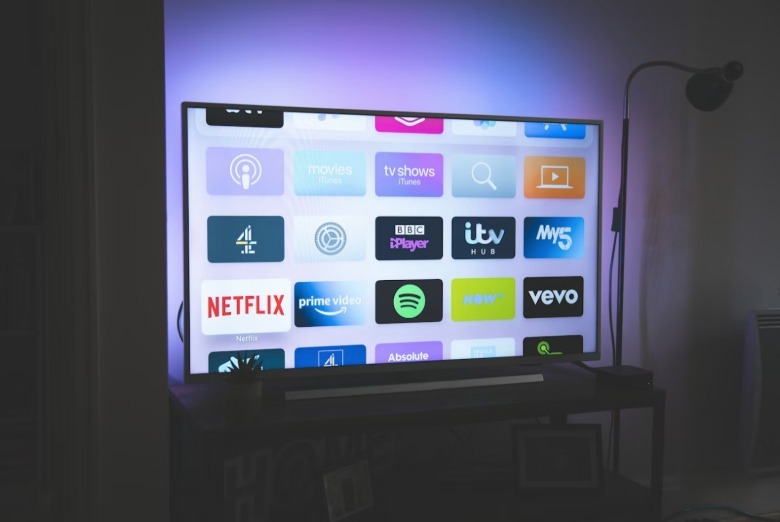
Modern smart TVs tend to have some USB ports that are easy to forget about, especially with those HDMIs gobbling up all of the oxygen. Most new sets feature at least one of these ports, typically located on the side or the back. The ports started showing up on TVs in the early 2000s, reaching ubiquity by 2010. Nowadays, it's tough to find a smart TV without a USB port, either an old USB-A one or a more modern (and useful) USB-C port.

These are actually very useful and offer a range of possible functions. For instance, the newly released Amazon Fire TV Stick HD is efficient enough to be powered by a basic USB 2.0 port, eliminating the need for a dedicated power adapter. Here's everything you can do with these ports and some suggestions on what to avoid. It's also important to note that settings could differ between makes and models, so check the instructions for specific information.

Watch and listen to stuff without the internet

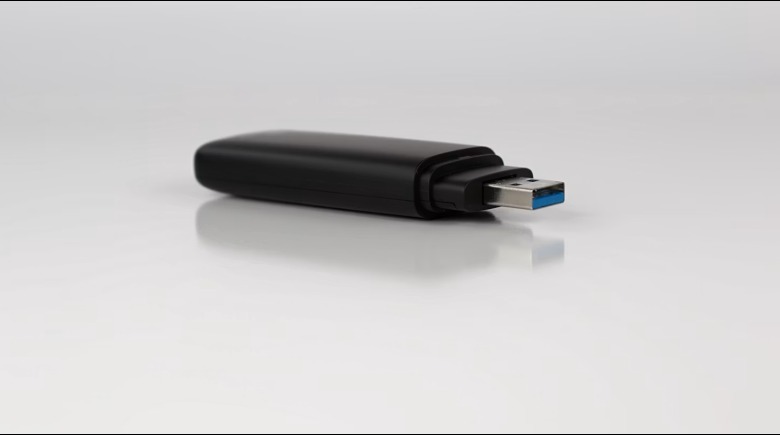
Smart TVs require the internet to do just about anything, beyond watching local and cable channels. How to keep entertained when the internet goes out? That's where that USB port comes in. These ports support USB sticks, so you can fill them up with all of your favorite shows and movies. There's no real limit here, as most modern TVs can handle 2TB (or larger) sticks.

There are a couple of little caveats here. Pay special attention to the initial format type of the stick itself, as most modern smart TVs can only handle FAT32 or exFAT/NTFS. The same goes for video format types. Stick to MP4, AVI or MKV to be safe, but check the TV's instruction manual for more information.

You also don't need access to a streaming platform like Spotify to listen to music on the TV. Just fill up a USB flash drive with songs and let the TV work its magic. Again, stick to common types to avoid any issues. We recommend MP3, WAV and AAC.

Design a light show

Smart TVs have created an entire lighting cottage industry. There are all kinds of USB-powered light strips out there intended to create a heightened mood. These illuminate the area with soft, ambient light and they automatically turn on and off with the TV. Some recent models use advanced algorithms to change the lighting along with the content being watched. This can help with immersion, especially during action-packed movies and shows.

Plug in a microphone

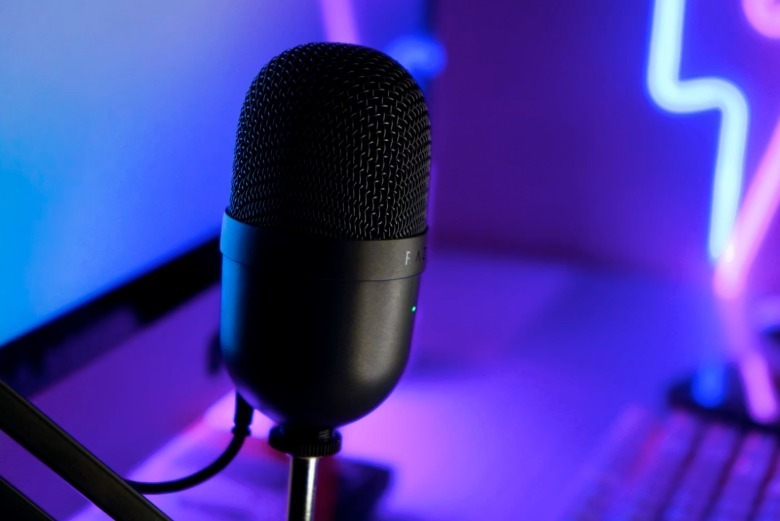
USB microphones are a dime a dozen and it's likely you have one or two laying around the house right now. Connecting one to a smart TV offers a couple of features. First of all, it's a way to access voice assistants if the remote control lacks a microphone. This offers voice control functionality via Alexa, Google Assistant or Bixby, among others.

This is also handy when using the TV for video calling, as a dedicated microphone should make everything much clearer. Finally, most smart TVs offer access to a few karaoke apps, which is like an instant party.

If you're feeling bold

Turn the TV into a picture frame

You don't need a TV that doubles as a picture frame in order to display some art in the home. You can simply load up some images onto a USB stick, plug it in and let the TV do the rest. It should automatically recognize the images and give an option to view them as a slideshow. Most TVs will also let you loop a single image continuously.

You could run into issues regarding file types, just as with video footage. To be safe, stick with common file types like JPEG and PNG.

That said, not all TVs are well-suited to this kind of usage — in fact, most aren't. There's a reason Samsung's Frame TVs are specifically designed to run in always-on mode. Regular TVs will use a lot of power to show some artwork, and some models of OLED sets are susceptible to burn-in. So, even if you do give this a shot, shut things down when you're not in the room and make sure the images cycle consistently so one shot doesn't end up there forever.

Charge up gadgets (but be prepared to wait a while)

This is a good news/bad news type of situation. You can use a TV's USB port to charge up a phone, tablet or a similar gadget in a pinch, but it will likely take a long time. That's because most modern smart TVs ship with USB 2.0 ports, which offer a modest 5V at 500mA. This would take around seven hours to charge up a newer phone. A laptop could take around 20 hours to top off. That's simply not practical.

However, there is a spot of good news. The industry has slowly been moving toward USB 3.0, with many newer TVs offering the feature. This will speed things up. In any event, even USB 2.0 ports are great for charging low-power devices like mobile accessories.

Some USB-powered devices won't work

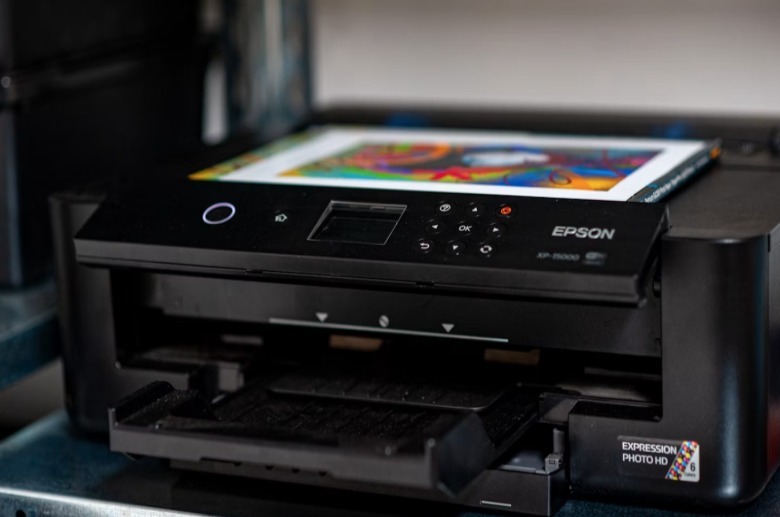
Not all USB-powered devices will work with smart TVs. This is particularly true of devices that require some kind of software driver to work. This includes stuff like USB printers, optical drives and scanners. The TV won't recognize them when connected.

There are some workarounds, but they can be finicky. Some optical disc drives are designed with TV connections in mind, but they only work with certain models. Some Android TVs can accept sideloaded apps that accept printer connections, but the process can be cumbersome.

Next Up

How to get wired internet without running ethernet cables

Advances in adapters mean you could ditch Wi-Fi for better performance.

Wi-Fi is a way a life. Between smartphones and laptops, even within our homes, we expect to be connected wherever we are. It's a powerful resource, but not a perfect one.

I'm sometimes at the mercy of service being throttled at peak times and facing interference from my many neighbors with their own networks. Even in my modestly sized apartment, there are times where the Wi-Fi network has weak spots. Since I'm renting, I can't just rip into the walls to put ethernet ports where I need them, and in this hundred-year-old building, there's only one outlet where I can put my router. For the homeowners out there, you may have higher priorities for your budget than paying for this type of modification, even though distance and physical obstructions might be weakening Wi-Fi signals. Mesh Wi-Fi systems and Wi-Fi extenders can help alleviate those problems, but sometimes, the best solution is to go straight to the source.

The benefits of wired internet

Performance with a wired ethernet connection will almost always be better than a Wi-Fi network. Your device is directly tapping into your router via a cable, meaning less latency and less interference from other signals. That makes wired connections a much better option particularly if you engage in a lot of demanding activities, like playing online games online or making video calls. But even if all you're doing is streaming a favorite show, it's just a better experience if the picture quality stays at a crisp 4K with no buffering.

The obvious action is to run a web of network cables around your home to anywhere you might want access, but that comes with big downsides. It's only feasible if you have a small space with no overly curious children or pets. Between clips and covers, there are ways to minimize the wires' presence, but it's hard to disguise them completely.

A more practical choice is to use specialized adapters that mostly take advantage of other wiring systems that are already in your walls. Several years ago, these adapters were a bit of a joke, but over time they've become a reliable option for improving your ethernet availability. There are three main options available, each with their own pros and cons to consider based on your needs, your home and your budget.

MoCA adapters

One system that can supplant ethernet is MoCA, which stands for multimedia over coax alliance. This adapter uses coaxial cables, which you might also use for your cable TV provider, to send broadband internet signals. Depending on how recent your construction is, you might be more likely to have these outlets scattered around your home's baseboards than ethernet ones. Since the coaxial tech is a more recent development for home use, it's also pretty well standardized, meaning you can expect reliably good performance for networking.

If you decide to use a MoCA setup and your modem is already connected to a coax, check with your internet provider to see whether your current model supports the tech. You'll only need one adapter for the coax outlet elsewhere in your home if it does; otherwise, plan to pick up two. You'll likely also need a cable splitter in that instance so that you can have both the modem and an adapter sharing a single coax outlet. The current standards for MoCA promise a max of 2.5Gbps, but depending on the age and quality of your cables and adapters, real-world speeds could be anywhere between 400Mbps and that top target.

Powerline adapters

The other, and perhaps simplest, choice is a powerline adapter, which does the same thing as a MoCA but using your electrical wiring system. For the curious minds out there, both of these adapters work thanks to orthogonal frequency division multiplexing. Very roughly speaking, OFDM lets a signal provider change the frequency it broadcasts on.

To get started with powerline, you need at least two adapters. You'll connect one adapter to your router with an ethernet cable, and then plug it directly into a wall outlet. The other adapter plugs into an outlet near where you need internet access, and is connected to your device via another ethernet cable. Most starter kits include two adapters and two ethernet cables, making getting started with a basic point-to-point network simple. There are also adapters that create their own Wi-Fi network, but as we already covered, ethernet is more reliable.

So, how fast is powerline? You'll see systems advertised with speeds anywhere from hundreds to thousands of megabits per second. Don't expect to ever hit those maximums. Regardless of whether a product promises 400Mbps or 1,200Mbps speeds, your actual results will be capped by the wiring in your home.

To get the absolute best performance, all the outlets you're using for powerline should be on the same breaker, and no appliances should be sharing that circuit. In that unicorn setup, you might expect reliable speeds of 600Mbps from a high-end adapter set. Things degrade further as the path for the signal gets more complex. If the adapters are on different breakers but the same side of your electrical panel, you might see speeds drop to 300Mbps, whereas if they're going to a breaker on the opposite side of your panel, they could drop all the way down to 100Mbps.

The important thing to know about powerline is that other things plugged into outlets can introduce noise and interference to your wiring and mess with signals. If you have a powerline adapter plugged into the same duplex outlet as a blender, for example, your signal could cut out every time you use that appliance. And turning on major appliances like HVACs and dryers can seriously degrade performance, especially when your adapters are on different circuits. The further the signal has to travel, the more likely it is to be degraded by bad wiring or experience interference from appliances somewhere along the way. Older buildings with, let's say, creative A/C grids might not be a good fit for this system at all.

With that said, many newer powerline models do a good job of canceling out the "noise" of your wiring, and the system as a whole has the bonus of taking advantage of a standard outlet, making it a good fit for more homes than MoCA. Regardless of your setup, keep in mind that complexity is the enemy of powerline, and always avoid using extension cords or plugging large electronics into the same duplex outlet as an adapter.

Ethernet over fiber

The final choice is to use ethernet over fiber. Just as MoCA and powerline adapters send broadband signals over your home's existing wires, this approach uses newly placed fiber optic cables to carry your internet to wherever you need it.

The biggest benefit of this approach is in performance. Fiber optics don't suffer from the same signal degradation that the adapters for other wires do, so if you buy a kit that promises 1Gbps, that's the speed you'll get. There's no dice roll based on the quality of your existing wiring, other electronic uses or random architectural quirks in your home. These cables are very thin, so they don't have the same disruptive presence as typical ethernet wires would be running along your baseboards. You can lay them out without causing a tripping hazard or busting open your walls.

Because they're filled with delicate glass, you do need to be careful about kinking fiber optic cables. Some DIY kits come with very thin, extremely flexible fiber that will bend around a tight corner or fit under a door, while others come with cables that are thicker and less flexible. Be sure to pay attention to minimum bend radius when picking out a solution, which tells you how tight a corner a cable can handle. A standard bend-insensitive cable might have a minimum bend radius of 10mm, while more specialized cables could turn 90 degrees in just 2.5mm.

On the flip side of the coin is, well, the coin. This option is notably more expensive, with kits that can run a couple hundred dollars a pop compared to a more budget-conscious adapter. And while the setup process isn't terribly complicated, the fiber optics do require more labor on your end since you'll be laying out and affixing the delicate cables yourself. If you aren't confident in your fine motor skills while wielding glue, this route can pose a challenge. But people willing to pay for premium performance might find this alternative to ethernet worth the investment.

Next Up

Roku is increasing prices across its hardware range

The Roku Ultra now costs $150 instead of $100.

Roku is raising its prices across its hardware lineup. The Desk first reported on the price changes after noticing that the company's devices are now priced up to $50 higher. Roku has also confirmed its price hikes to Engadget. The company's devices are currently on sale on Roku's official website, with their old prices listed as the discounted prices. Roku Ultra, its top-of-the-line streaming device, now costs $150, up $50 from its old price of $100. Meanwhile, the most basic Roku Streaming Stick will now set you back $40 instead of $30. 

According to The Desk, Roku raised the prices of its devices due to rising memory costs. A company executive reportedly told the publication that Roku made the "tough decision" to raise its prices on streaming hardware to address shortages in memory and other components caused by the AI boom. 

During the company's last earnings call, Roku CEO Anthony J. Wood said its devices use significantly less memory than competitors and that the parts used to make its devices cost less than rival's more premium components. Roku was, thus, expecting its business to be less affected than its rivals. Since Roku's hardware business is mostly third-party, Wood was positioning the rise in memory prices as something that could be good for it. He said it could attract more manufacturers to Roku, as the prices to build its rivals' devices grow bigger. These price hikes show that the company is also feeling the effects of the memory crunch when it comes to its first-party devices, if they now cost up to 50 percent more than before.