How-To

How to Pair an Old Apple Mighty Mouse or Magic Mouse in Windows 10

Got an old Apple Bluetooth mouse laying around? Good news, it works in Windows 10!

I was digging through boxes in my basement the other day and unearthed a buried treasure: my old Apple Mighty Mouse. My brief stint as a Mac user ended over five years ago, and so my once-trusty Apple-branded Bluetooth mouse had been collecting dust. I was surprised to see that upon switching it on; it blinked to life. I decided to see if it would work on my Windows 10 PC. And it did, with a little coaxing.

Here’s how to get yours working, too.

Installing Apple Mighty Mouse or Magic Mouse Drivers in Windows 10

If your computer has Bluetooth, that’s half the equation. Drivers are in the second half.

I am using the discontinued Apple Mighty Mouse, model A1197.

Apple makes official Windows drivers for their peripherals, including the Mighty Mouse and Magic Mouse. They are bundled up with Boot Camp, which lets you boot Windows on your Mac.

Normally, you get these drivers as part of the Boot Camp Assistant setup process. But if you are no longer a Mac user, you can snag them from Apple’s support pages. I found the driver in the Boot Camp Support Software 5.1.5769 (August 2015) zip file.

Go ahead and download this file and unzip it. Inside, navigate to the BootCamp > Drivers > Apple folder. In there, you’ll find a file called applewirelessmouse64.exe. Run it to install your Magic Mouse drivers or Mighty Mouse drivers.
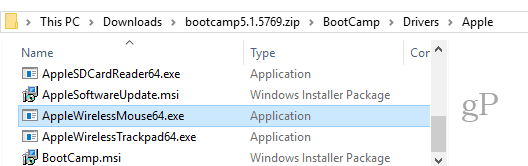
(Note: If you are using an Apple Magic Trackpad, try out the AppleWirelessTrackpad64.exe drivers.)

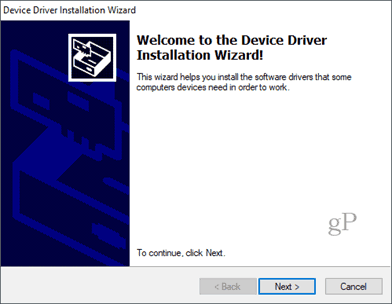
Proceed through the Device Driver Installation Wizard.
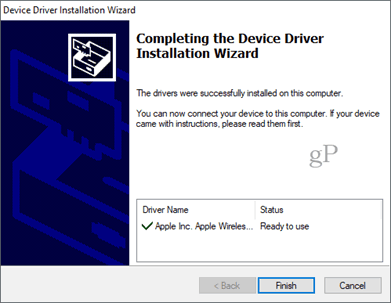
Click Finish when you’re done.
Free Newsletter

Thanks for visiting my site, groovyPost.com!

Enter your email address below and I'll send you the latest in Tech News, Tips and Reviews.

    100% Spam Free - Unsubscribe at any time.

    Pairing Mighty Mouse or Magic Mouse in Windows 10

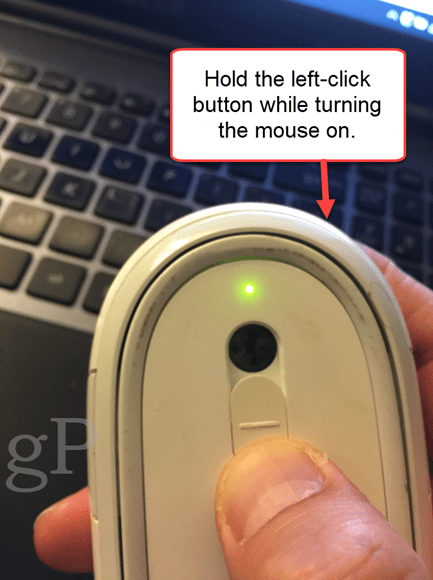
    Now that you have the drivers, the next step is to pair the mouse. It had been so long since I used my Mighty Mouse that I had forgotten how to pair it. There isn’t a pairing button, just an on/off switch on the bottom that slides over the optical sensor on the bottom.

    To get it to pair, go into your Bluetooth settings in Windows 10. Turn off your mouse and click Add Bluetooth or other device and choose Bluetooth.
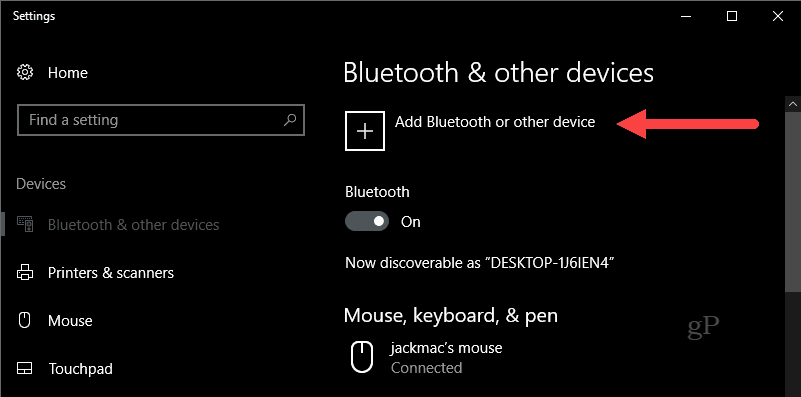
    When Windows starts looking for the device, switch on your mouse while holding the left-click button. Keep holding the left-click button till the green light on the bottom starts flashing.
    Your Apple mouse should show up in the list of devices. Click it. If prompted for a passcode, try 0000 or 1111.
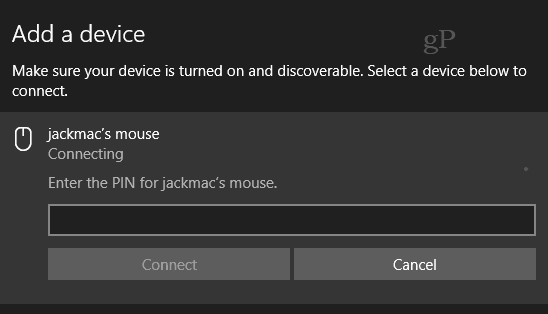
    Once you’re connected, Windows 10 will finish setting it up.

    That’s it! You should be up and running.

    I’ve only tried this on my Apple Mighty Mouse. But I believe it should work with any Apple wireless mouse. If you try it on your Windows 10 PC, let me know about your success or failure in the comments.

    PS A note about the feature image. This was taken by Feureau (Own work) [CC BY-SA 3.0 or GFDL] via Wikimedia Commons. I could’ve taken a photo of my own Mighty Mouse, but it’s filthy. When I say I dusted it off, I mean that figuratively…

    11 Comments

    11 Comments

    1. RD

      February 1, 2018 at 9:34 am

      Bro, I also connected my mighty mouse but its scrolling ball is not working even after installing the drivers. Although it works with Mac.
      Can u help me out in this?

      • Steve

        October 16, 2018 at 12:36 am

        That is a known problem with the mighty mouse. Try turning it upside down and scroll the ball around. Some debris or something dislodges and the scroll bar starts working again.

    2. Jeff

      August 7, 2018 at 5:34 am

      The Mighty Mouse pairs and I can move around, but the left and right mouse buttons don’t work. The scroll ball seems to work OK, too.

    3. Steve

      October 16, 2018 at 12:36 am

      Worked like a charm! Thanks for the post!

    4. Bruce R

      November 27, 2018 at 9:22 pm

      Thanks so much for this post. I bought an even older model A1015 on eBay for next to nothing thinking it was the two button version you have – my mistake! However, your instructions allowed me to download the driver for Win10 and I got it working.

      The biggest problem I had was pairing the A1015. There was a metal strip on top of the batteries which fell out as soon as I opened the battery cover. I took me a long time to work out how to re-insert that strip. The trick was realizing that the strip of white was intended to be visible from the underside of the mouse when it was switched off (the cover was closed). Once I got it correct I was able to pair the mouse successfully to Win10.

      Pity is wasn’t the two button version!!

      Thanks again !!

    5. Jeff

      October 29, 2019 at 7:22 am

      Tried using a Magic Mouse 2 with a windows 10 PC. I am unable to use the scrolling/gestures, but basic mouse (buttons and movement) work fine. So — 70% of the way there, but definitely not seamless.

    6. alexd

      November 25, 2020 at 11:42 am

      meehh.. .why would anyone want a half ass mouse like that on a decent Windows box ? Perhaps on a desperate day until the new one arrives… but I would take the day off instead :-)

    7. Jett Peterson

      February 21, 2021 at 8:36 am

      My mouse won’t even turn on. I even replaced batteries. Tips?

    8. The Lazer

      January 31, 2022 at 9:06 am

      Good article. I would add that I was having a problem where a mouse I had previously paired was not longer working. Originally thought mouse was paired with another device or needed a hard reset. Having followed these instructions a first time with no success, I went back into Bluetooth settings and scrolled down to ‘Other devices’ at the bottom of the window. Hiding away there was the mouse which I promptly clicked to remove.

      Once this was done, I followed the instructions again and the mouse appeared immediately for pairing and started to work fine.

    9. Andres

      August 3, 2022 at 3:08 am

      Works perfectly for me ! Thanks for the tip

    10. Kennon

      November 30, 2022 at 7:49 am

      Works perfectly for me using wireless Mighty Mouse on W10 work laptop. Thanks!

    Leave a Reply

    Your email address will not be published. Required fields are marked *


    News

    CCleaner for Windows Hacked to Spread Malware, Update Now

    CCleaner for Windows has been hacked to spread malware to users of the 32-bit version. Here’s what you need to know (and do).

    CCleaner, the popular file clean-up and performance optimization utility for Windows, has been hacked to spread malware to users of the 32-bit version. The breach was discovered by security researchers at Cisco Talos Group. They found that the hackers could inject the malware into the app by accessing the download servers used by the antivirus provider Avast (the parent company that owns CCleaner). “For some time, the legitimate signed version of CCleaner 5.33 being distributed by Avast also contained a multi-stage malware payload that rode on top of the installation of CCleaner,” writes the Talos team.

    The malware allowed an infected system to be remotely controlled and collect data from your computer. “The compromise could cause the transmission of non-sensitive data (computer name, IP address, list of installed software, list of active software, list of network adapters) to a 3rd party computer server in the USA,” Piriform says in a statement issued on Monday.

    The malware affects CCleaner version 5.33.6162 and CCleaner Cloud version 1.07.3191. According to Avast, about 2.27 million people ran the affected software. Luckily, the company is taking the necessary steps to correct the situation. In a blog post this morning, Piriform exec Paul Yung writes, “we’re moving all existing CCleaner v5.33.6162 users to the latest version. Users of CCleaner Cloud version 1.07.3191 have received an automatic update. In other words, to the best of our knowledge, we were able to disarm the threat before it was able to do any harm.”

    Check Your Version of CCleaner

    To determine the version of CCleaner you are currently running simply launch the application and check the version number on the app’s upper-left next to the logo. The current non-compromised version at the time of this writing is 5.34.6207.

    ccleaner version

    Make sure the version you’re running is 5.34.6207 or higher. 64-bit versions were not affected by this security breach.

    If you haven’t run CCleaner in a while, you will probably get a message similar to the one shown below that alerts you to an available update.

    Note that the Android version was not affected. Only the 32-bit version for Windows was compromised. If you’re running the 64-bit version, you should be fine – but it wouldn’t hurt to check for an update.

    14 Comments

    14 Comments

    1. Ziggy

      September 18, 2017 at 10:48 pm

      Mind boggling! Of late I’ve been using Glary disk cleaner, so I hope all’s well there!

    2. Steve Krause

      September 19, 2017 at 7:51 am

      I had an earlier version installed so no worries on my side. Wow… Nasty one. I’m just glad they went public and notified customers what happened.

      I’m still a fan of CCleaner and its other products. But, AVAST needs to take a look and get things cleaned up on its systems side of things.

      • Ron Lund

        September 20, 2017 at 1:20 pm

        I just checked my 32-bit computer and I also had a pretty old version on it. Of course, I had the popup warning about updating and quickly did so. I hope I managed to escape any compromising of my stuff.

    3. Tony Armstrong

      September 19, 2017 at 7:59 am

      Is no-one concerned that an anti-virus provider has been hacked into? What about their other products?

      • Bipolar_Bear

        December 10, 2022 at 6:21 pm

        Frightening stuff you are correct!!

    4. Glenn Charles

      September 19, 2017 at 3:44 pm

      This actually contains a lesson. First, always check software for updates, even the stuff that “always auto-updates”. Second and even more important, try to have an anti-virus software module check each and every download. Third and actually critical and nearly no one does it, the checksum should always actually be checked if it’s available. IF YOU DOWNLOAD FROM SOFTONIC, FILEHIPPO, A ZIFF-DAVIS PUBLICATION (because of its downloader) and many others, you simply have to check each and every download, because many of their downloads are infected. Because of fear of being litigated against for calumny and libel I refuse to openly speculate. Filehippo last century was quite reliable. PC Mag (one of the ZD pubs) was entirely safe until the turn of the century. ALWAYS, ALWAYS, ALWAYS check your downloads. There are even online free sites where you can check them.

    5. Ginny

      September 19, 2017 at 5:05 pm

      It appears I, too, have an earlier version so hope I’m okay. Goodness, why can’t these nasty people mind their own business and leave those people alone who ARE minding their own business. It’s irritating!

    6. venkat

      September 19, 2017 at 10:53 pm

      my version is 5.34.6207 (64 bit). So I presume there is not problem in cleaning my files with ccleaner

    7. Ziggy

      September 19, 2017 at 11:50 pm

      Doing a little bit of research on this I found that it stored certain information in the Windows registry key HKLM\SOFTWARE\Piriform\Agomo

      If you have the Agomo listed, ouch!

      • Ron Lund

        September 20, 2017 at 1:24 pm

        I’m doing a search right now in regedit to see if that key shows up. Fingers crossed.

    8. Ron Lund

      September 20, 2017 at 1:27 pm

      Cool!!! Looks like I managed to escape any modifying of my windows registry from these hackers.

    9. Ziggy

      September 22, 2017 at 7:12 am

      It ain’t all clear sailing yet folks! Latest to hit the net is that there is a second stage installer associated with this malware. To think that it just infected the 32 bit version is not totally correct as it also has implications for the 64 bit version.

      Do some research on the following in relation to CCleaner and you will see what I mean:

      GeeSetup_x86.dll
      trojanized TSMSISrv.dll, associated with the 32 bit
      trojanized EFACli64.dll, associated with the 64 bit

      There are also some other registry keys that need to be checked to see whether one has been compromised or not. Again the research will show you which keys have been affected.

    10. Susan

      December 4, 2021 at 4:49 pm

      Soo…why is the version on my Android phone suddenly asking for full access to my folders and won’t run otherwise? It didn’t do that before. Should I uninstall and reinstall?

      • Mark

        October 28, 2023 at 3:02 pm

        Remove the junk, and never use it again. Won’t people learn?!

    Leave a Reply

    Your email address will not be published. Required fields are marked *


    To Top